I built the style of my personal website through several iterations of HTML, CSS, and Hugo templates. This post is where I check how those pieces render together, from paragraphs and tables to interactive plots and synchronized tabs.
The examples below cover the site’s Markdown elements, form controls, and every
custom shortcode in layouts/shortcodes/.
Headings
The stylesheet supports all six heading levels:
Heading 1
Heading 2
Heading 3
Heading 4
Heading 5
Heading 6
Paragraphs and Emphasis
A paragraph wraps to the available width. I use this example to check spacing and readability on desktop and mobile screens.
You can write italic text, bold text, and bold text with italics.
Strikethrough uses two tildes: an earlier draft. Inline code uses backticks,
as in print("Hello, world!"). Inline code can also be a
link to the main.py source file.
Links and Footnotes
Links can point to another page on this site, an external page, or a page with a hover title. A bare URL also becomes a link: https://jorgemartinez.space.
Footnotes keep an annotation out of the paragraph.1
Lists
An ordered list:
- Read the source file.
- Compile it if the language requires it.
- Run the program.
An unordered list can contain nested items:
- Compiled languages
- C
- Rust
- Interpreted languages
- Python
Task lists show checked and unchecked items:
- Add the source files.
- Capture their output.
- Add another language.
Definition lists pair a term with its description:
- Page bundle
- A post directory containing
index.mdand its assets. - Shortcode
- A Hugo template called from the post’s Markdown.
Tables
Markdown tables support left, center, and right alignment:
| Language | Source | Build Step |
|---|---|---|
| C | main.c | cc |
| Python | main.py | None |
| Rust | main.rs | rustc |
Quotes and Separators
A blockquote can contain paragraphs, emphasis, and nested quotes:
Example problem
Write a program that prints a greeting.
Each implementation should produce the same text.
A horizontal rule separates two pieces of content:
Code Blocks, Includes, and Tabs
A fenced code block declares its language for syntax highlighting:
print("Hello, world!")
The include shortcode reads a file relative to the post directory. This keeps
the displayed source and the runnable file together:
{{% include file="code/main.py" language="python" %}}
Source Files
The tabs shortcode contains one tab per language. Each tabName becomes a
button label. The buttons are collected from the child tabs, so tabTotal is
not needed. label names the tab group for assistive technology.
Both groups below use sync="hello-world" and the same tab names. Selecting a
language in either group also selects it in the other. Arrow keys move between
tabs; Home and End select the first and last tab. tabRightAlign="3" places the
third button at the right edge. Its indices start at 1.
{{< tabs label="Hello-world source files" sync="hello-world" tabRightAlign="3" >}}
{{< tab tabName="C" >}}
{{% include file="code/main.c" language="c" %}}
{{< /tab >}}
{{< tab tabName="Python" >}}
{{% include file="code/main.py" language="python" %}}
{{< /tab >}}
{{< tab tabName="Rust" >}}
{{% include file="code/main.rs" language="rust" %}}
{{< /tab >}}
{{< /tabs >}}
#include <stdio.h>
#include <stdlib.h>

int main(void)
{
    puts("Hello, world!");
    return EXIT_SUCCESS;
}
def main() -> None:
    print("Hello, world!")


if __name__ == "__main__":
    main()
fn main() {
    println!("Hello, world!");
}
Run the Programs
From this post’s code directory, use the commands for your selected language.
The C and Rust examples need their compilers; the Python example needs Python.
The console transcripts are included from files, just like the source above.
$ cc -std=c11 -Wall -Wextra -pedantic main.c -o hello-c
$ ./hello-c
Hello, world!
$ python main.py
Hello, world!
$ rustc main.rs -o hello-rust
$ ./hello-rust
Hello, world!
Math
Set math: true in the post metadata to load KaTeX. Inline math uses single
dollar signs, as in $a^2 + b^2 = c^2$. Display math uses double dollar signs:
$$ F(x) = \frac{1}{2\pi i} \int \frac{f(z)}{z-a},dz $$
Images and Captions
Markdown images use their description as alternative text:
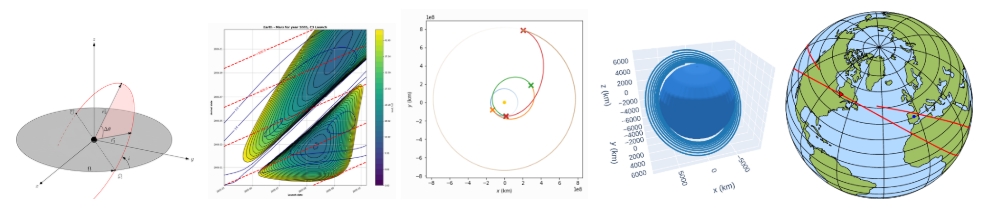
The image_with_caption shortcode adds a caption. For a raster image in the
page bundle, it generates responsive WebP sizes and detects portrait or
landscape orientation:
{{< image_with_caption src="img/lambert-geometry.png" caption="Geometry of Lambert's problem." >}}

For a static path or an external URL, the same shortcode renders the image and caption without processing the image:
Admonitions and Notes
The admonition shortcode supports info, warning, danger, hint, and
tip. Pass its text through content:
{{< admonition type="info" content="The examples use files from this post's page bundle." >}}
INFORMATION
The examples use files from this post's page bundle.
WARNING
Compiling the C and Rust examples requires their respective compilers.
OVERWRITE
Compiling to an existing filename replaces that file.
HINT
Select a language tab to show both its source and its run commands.
TIP
Use include to display a source file without copying it into Markdown.
danger and unrecognized types accept a custom title. An unrecognized type
uses the general information icon:
EXAMPLE
A custom title with the fallback icon.
The smaller note shortcode accepts only content:
{{< note content="This is a short note." >}}
Problem Statements
The euler_problem shortcode accepts a title and a statement:
{{< euler_problem title="Example Problem" statement="Print Hello, world! in C, Python, and Rust." >}}
Example Problem
Print Hello, world! in C, Python, and Rust.
Raw HTML, Forms, and Disclosures
rawhtml can render an inline HTML block or read an HTML file from the page
bundle. The inline form is useful for tag links and collections:
{{< rawhtml >}}
<div class="collection">
  <a class="tag" href="/posts/">Posts</a>
  <a class="tag" href="/posts/tag/hugo/">Hugo</a>
</div>
{{< /rawhtml >}}
The file form renders components.html. These independent tabs show its
preview and source. The example contains a fieldset, inputs, a select,
checkboxes, radio buttons, a textarea, a reset button, and a disclosure. Reset
restores the form’s initial values.
{{< rawhtml file="components.html" >}}
{{< /rawhtml >}}
Show More Details
This disclosure uses the browser's native details and summary elements.
<form aria-label="Example form">
  <fieldset>
    <legend>Rendering Options</legend>
    <p>
      <label for="example-name">Name</label>
      <input id="example-name" type="text" value="Hello, world!">
    </p>
    <p>
      <label for="example-count">Copies</label>
      <input id="example-count" type="number" min="1" max="10" value="1">
    </p>
    <p>
      <label for="example-language">Language</label>
      <select id="example-language">
        <option>C</option>
        <option>Python</option>
        <option>Rust</option>
      </select>
    </p>
    <p>
      <input id="example-caption" type="checkbox" checked>
      <label for="example-caption">Show caption</label>
    </p>
    <p>
      <input id="example-light" type="radio" name="example-theme" checked>
      <label for="example-light">Light</label>
      <input id="example-dark" type="radio" name="example-theme">
      <label for="example-dark">Dark</label>
    </p>
    <p>
      <label for="example-notes">Notes</label>
      <textarea id="example-notes" rows="3" cols="20">A sample form.</textarea>
    </p>
    <p><button type="reset">Reset Form</button></p>
  </fieldset>
</form>

<details>
  <summary>Show More Details</summary>
  <p>This disclosure uses the browser's native details and summary elements.</p>
</details>
Plant Cards
card_plant displays a plant’s name, scientific name, image, and care fields.
This sample uses a local illustration:
Spathiphyllum
Spathiphyllum

The available fields are name, scientific_name, image, type,
growth_habit, watering, humidity, light, soil, temperature, and
birthday.
Article Downloads
The download_article shortcode makes a button-style link to a file. This
example links to my bachelor thesis:
{{< download_article href="/publications/bachelor-thesis.pdf" >}}
Interactive Plots
Set plotly: true in the metadata. The plotly shortcode reads a JSON figure
from json; height defaults to 200px. This example uses a local file:
{{< plotly json="plots/squares.json" height="360px" >}}
Three.js Scenes
The threejs shortcode takes a library version, a unique scene id, and a
module script src. This post also sets threejs: true in its metadata. The
script attaches its canvas to threejs-container-<id>.
{{< threejs version="0.160.0" id="components-cube" src="code/cube.js" >}}
The cube resizes with its container. It stays still when the browser requests reduced motion.
Build Version
The version shortcode prints the VERSION environment variable from the
Hugo build. If that variable is unset, the shortcode renders an empty span.
{{< version >}}
Build version: 2026.10.11
Site Navigation
The shared layout supplies the header, social links, search field, navigation buttons, post metadata, tag links, back button, and footer. They already appear around this gallery. The posts index and search page show the post lists and search-result components.
Shortcode Reference
These are all the custom shortcodes currently defined by the site:
| Shortcode | Component |
|---|---|
admonition | Callout with an icon and title |
card_plant | Plant identification and care card |
download_article | Article download link |
euler_problem | Problem title and statement |
image_with_caption | Image with a caption |
include | File displayed as highlighted code |
note | Short information note |
plotly | Interactive JSON figure |
rawhtml | Inline or file-based HTML |
tab | Named panel inside a tab group |
tabs | Independent or synchronized tab group |
threejs | Three.js module and scene container |
version | Build version from the environment |
Hugo places the footnote at the bottom of the article and adds a link back to its reference. ↩︎